Taubyte makes hosting static websites straightforward. Whether you’re building a simple landing page, a single-page application, or a full-featured web app, you can deploy and serve your website directly on your Taubyte cloud with automatic builds and instant previews.
Creating a Website
From the sidebar, navigate to Websites and click the + button.
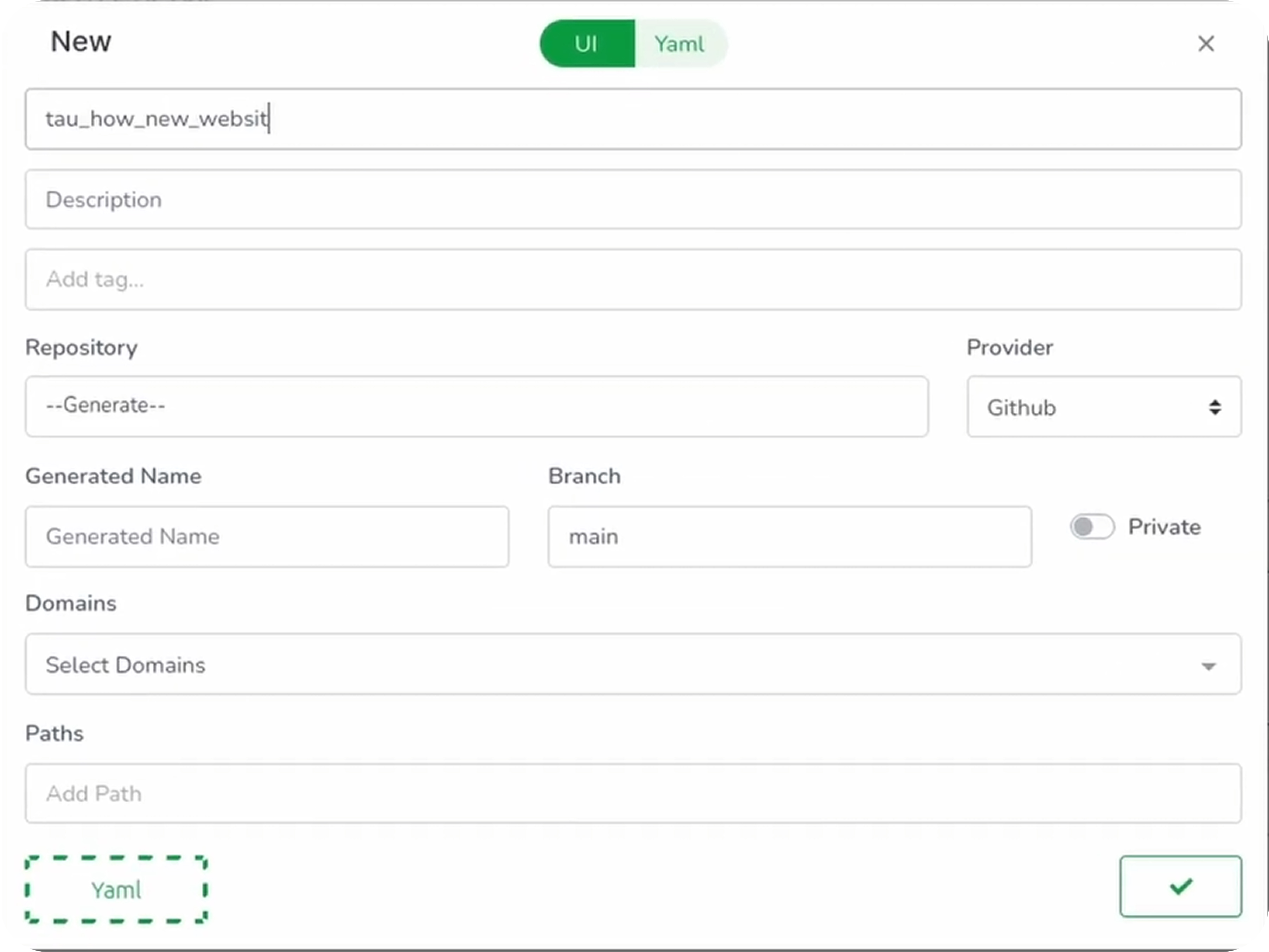
Configure your website:
| Field | Description | Example |
|---|---|---|
| Name | Unique identifier | my-website |
| Repository | Generate new or import existing | Generate |
| Private | Repository visibility | Toggle on for private |
| Domain | Which domain to serve on | GeneratedDomain |
| Path | URL path | / |
Choosing a Template
Taubyte offers several templates to get you started:
- HTML: Basic HTML/CSS/JS starter
- React: React application boilerplate
- Vue: Vue.js starter template
- Static: Empty static site
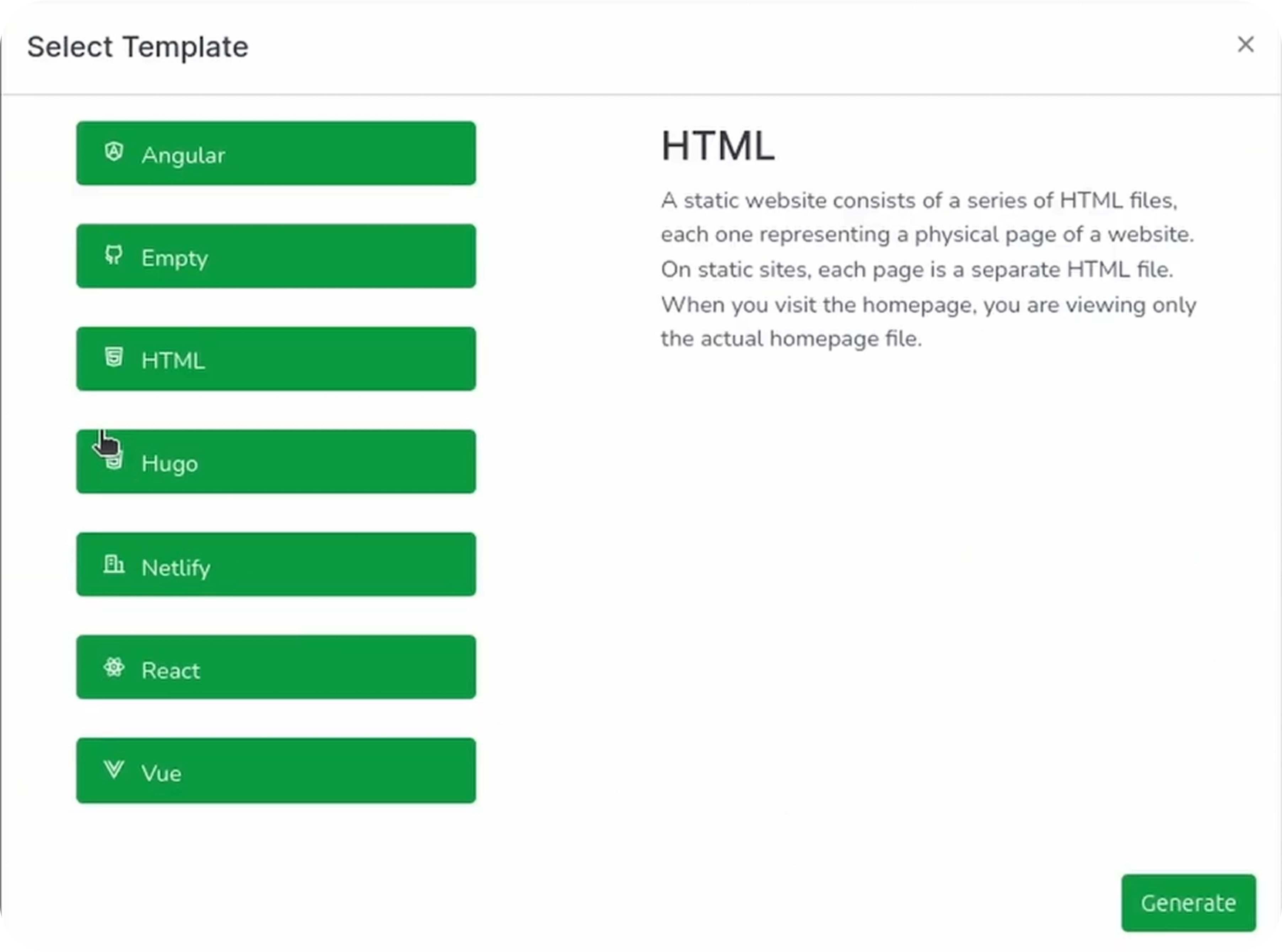
Select your preferred template and click Generate.
This instantly creates a fresh GitHub repository with starter code ready for customization.
Pushing Configuration
Click the push button in the bottom right to save your configuration.
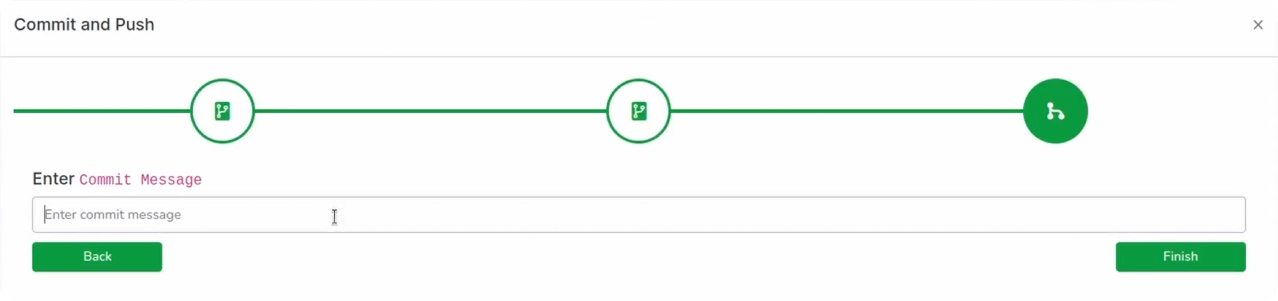
Before finalizing:
- Open the websites folder
- Find the YAML file for your website
- Copy the ID and GitHub repo name—you’ll need these for builds
Type a commit message and push.
Editing Your Website
Click the open in browser icon next to your website in the list. This takes you directly to the GitHub repository.
Making Changes
- Open
index.html(or your main file) - Click Edit
- Make your changes:
<!DOCTYPE html>
<html lang="en">
  <head>
    <meta charset="UTF-8" />
    <meta name="viewport" content="width=device-width, initial-scale=1.0" />
    <title>My Taubyte Site</title>
    <style>
      body {
        font-family: -apple-system, BlinkMacSystemFont, "Segoe UI", Roboto,
          sans-serif;
        max-width: 800px;
        margin: 50px auto;
        padding: 20px;
        background: linear-gradient(135deg, #667eea 0%, #764ba2 100%);
        min-height: 100vh;
        color: white;
      }
      h1 {
        font-size: 3rem;
      }
    </style>
  </head>
  <body>
    <h1>Welcome to My Taubyte Site!</h1>
    <p>This site is hosted on my own cloud infrastructure.</p>
  </body>
</html>
- Commit the changes
Triggering a Build
Since Dream doesn’t automatically trigger builds from GitHub, do it manually:
# Use the ID and full repo name you copied earlier
dream inject push-specific --rid <github-id> --fn <repo-name>
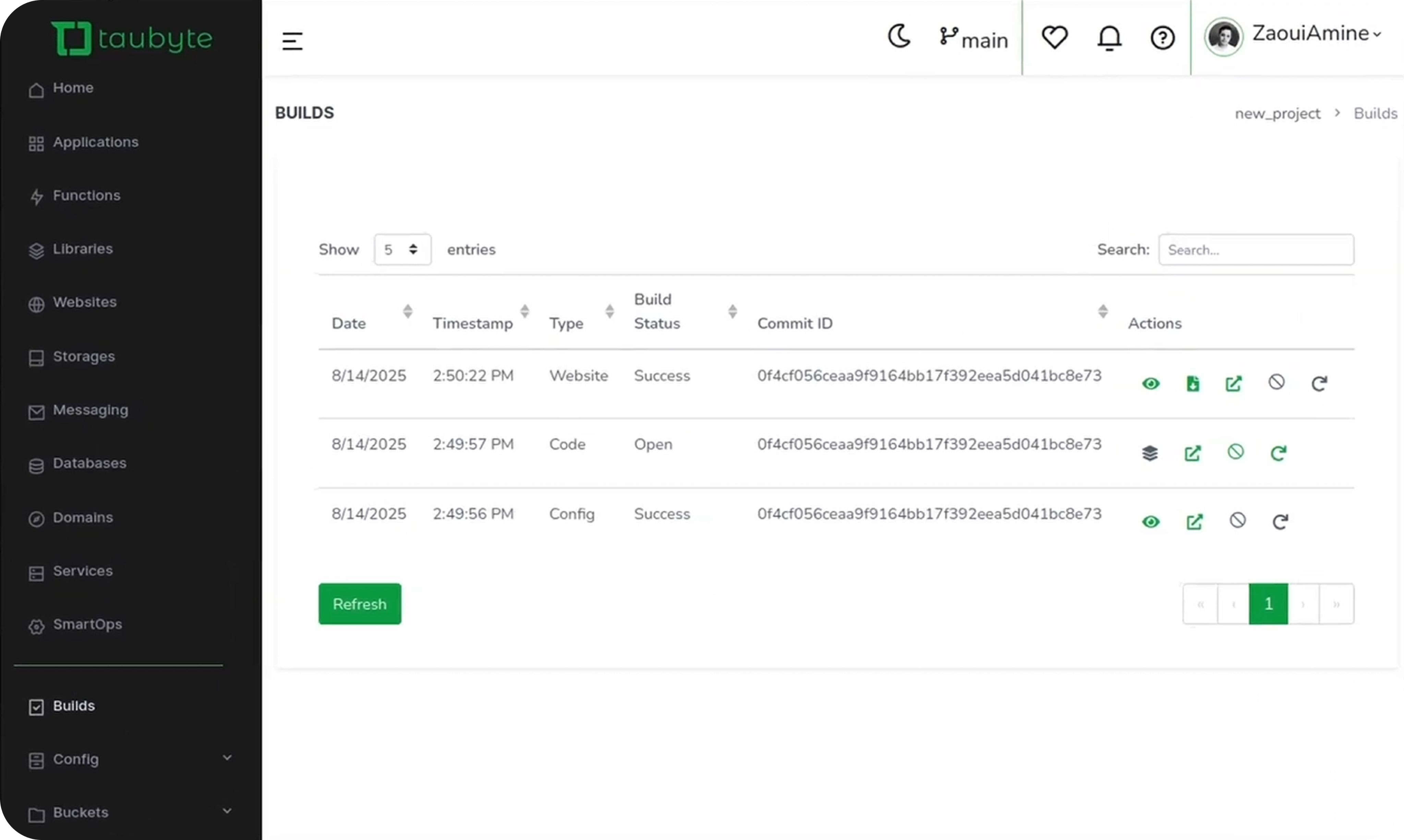
Navigate to the Builds page in the console and wait for completion.
Viewing Your Website
Local Setup Required
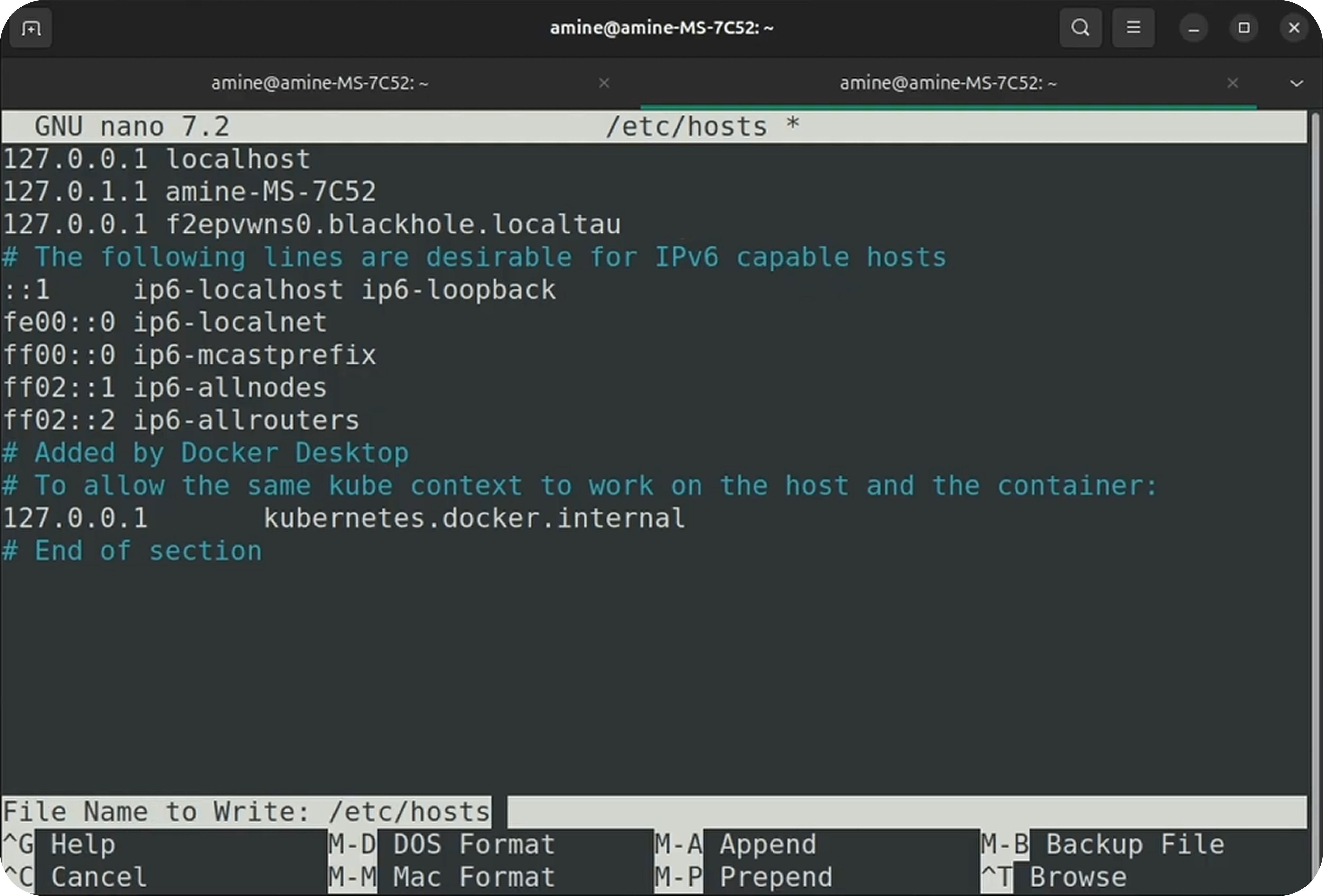
Before previewing, add your generated domain to /etc/hosts:
sudo nano /etc/hosts
Add:
127.0.0.1 your-domain.blackhole.localtau
Open the Website
Back in the console:
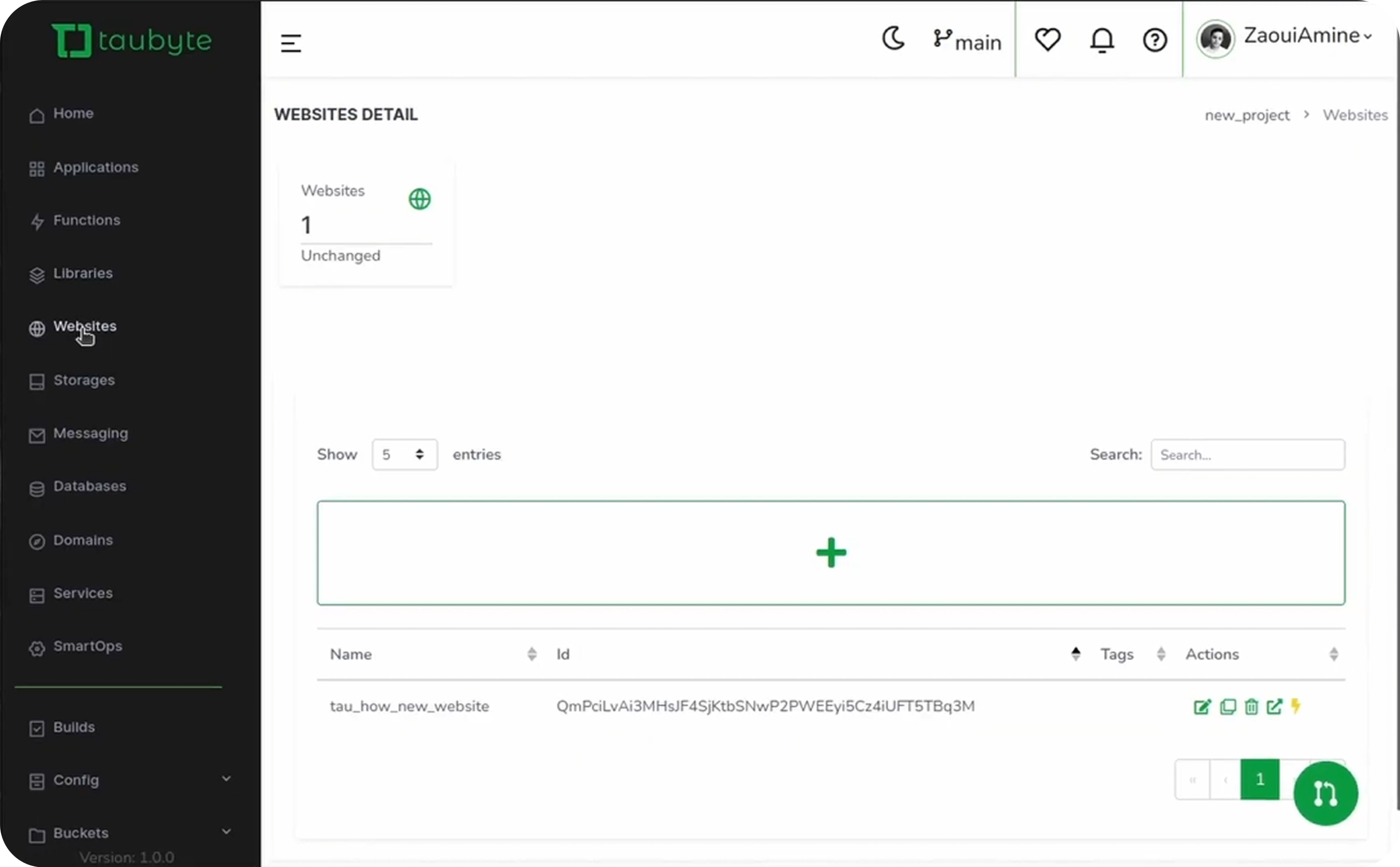
- Navigate to Websites
- Click the lightning icon next to your website
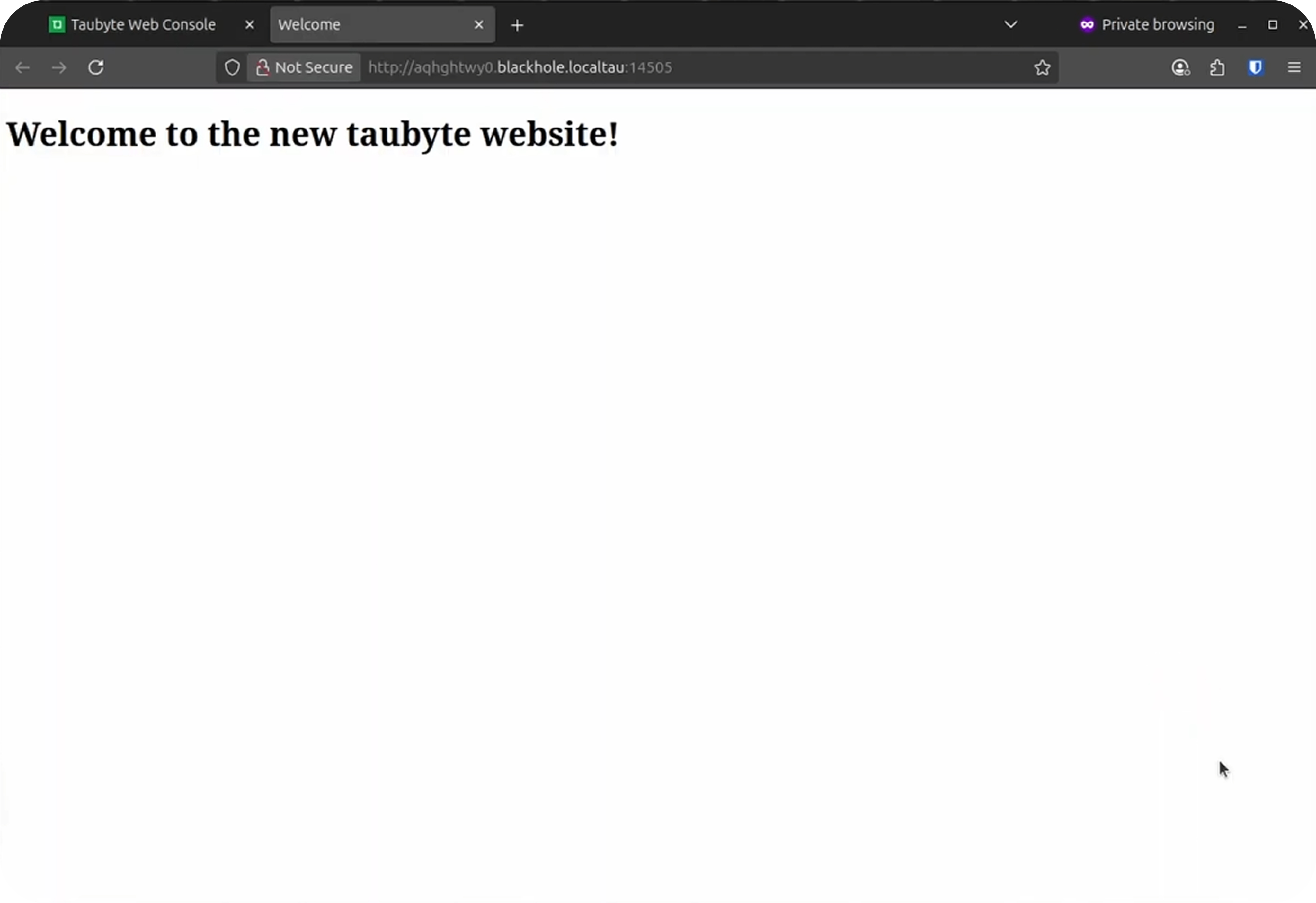
- A new tab opens with your live site!
Website Structure
Generated websites follow this structure:
my-website/
├── index.html        # Main entry point
├── css/
│   └── style.css     # Stylesheets
├── js/
│   └── app.js        # JavaScript
├── assets/
│   └── images/       # Static assets
└── .taubyte/
    ├── config.yaml   # Build configuration
    └── build.sh      # Build script
The .taubyte Folder
This folder is essential for proper deployment:
config.yaml - Defines the build environment:
version: "1.0"
environment:
  image: node:alpine
  variables:
    NODE_ENV: production
workflow:
  - build.sh
build.sh - The build script:
#!/bin/bash
mkdir -p /out
cp -r * /out/
rm -rf /out/.taubyte
Important: All output must go to the
/outfolder.
Advanced: Building with Frameworks
For frameworks like React or Vue, the build process is more involved:
React Example
config.yaml:
version: "1.0"
environment:
  image: node:18-alpine
  variables:
    NODE_ENV: production
workflow:
  - build.sh
build.sh:
#!/bin/bash
npm install
npm run build
mkdir -p /out
cp -r build/* /out/
Vue Example
build.sh:
#!/bin/bash
npm install
npm run build
mkdir -p /out
cp -r dist/* /out/
Troubleshooting
| Issue | Solution |
|---|---|
| Website not loading | Check /etc/hosts includes your domain |
| Build failed | Review build logs in the Builds tab |
| 404 errors | Ensure index.html exists at root |
| Assets not loading | Verify paths are relative, not absolute |
Conclusion
You’ve just created and deployed your first website on Taubyte:
- Created a website with a template
- Edited the HTML in GitHub
- Triggered a build
- Previewed your live site
With websites and functions sharing the same domain, you can build complete web applications with seamless frontend-backend integration.
Next, learn about Object Storage for storing and serving files.